MicrosoftWindowsWindows 11
With so many things to remember, it is quite common to forget a thing or two.
Table of Contents
There are 2 types of user accounts on a Windows computer: Alocal accountand aMicrosoft account.
The method(s) used to reset their passwords depend on the punch in of account.
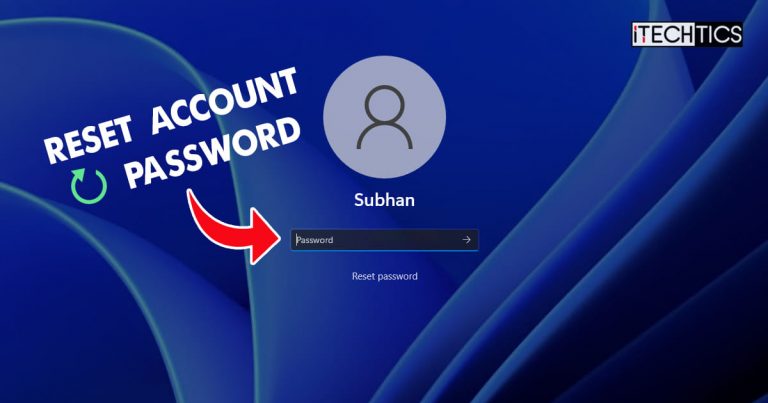
You have multiple options to choose from if you are resetting the password for a local account.
In comparison, if it is a Microsoft account, you are only left with one option.
Regardless, all of these methods have been discussed below.

This is the most convenient method to reset your password.
If so, skip to the next methods discussed below.
This will show the Reset password button that was previously hidden.

On the next screen, you will see the 3 security questions.
Provide the answers for them in the text fields and then tap on the arrow.
Enter the new password you had just configured to log into your account.

Sometimes, people also tend to forget the answers to their security questions.
If so, you could proceed to perform the methods given below to reset your accounts password another way.
When in Advanced Startup, clickTroubleshoot.Troubleshoot
Then clickSystem Image Recovery.

Now opt for operating system.Select OS
You will now see a dialog box with a message.
ClickCancel.Click Cancel
On theRe-image your computerwizard, select Select a system image and then clickNext.
Now clickAdvanced.Click Advanced
From the popup, clickInstall a driver.Install driver
In the next dialog box, clickOk.

A navigation window will now open.
Now clickCloseon all windows and prompts until you return to Advanced Startup.
That said, most of such tools are usually paid.

To begin, downloadPassFab 4WinKeyfrom their website and install it on the computer.
When booted from the USB, you will see that the software has launched.
On the initial screen, snag the operating system and clickNext.

Now go for the account of which you wish to reset the password and selectReset Account Password.
Then clickNext.Reset account password
Confirm your action and assign a new password for the account.
Now reboot your rig and boot normally.

When the computer reboots, you’re free to log into your account using the new password.
ClickGet code.Generate code
You will now receive a code on your email.
Enter that code and clickNext.

If you are usingWindows 10, here is a guide toresetting a forgotten password.
0
Get weekly insights, tips and exclusive content delivered straight to your inbox.
Talk to us straight and get your questions answered right away





source: www.itechtics.com
