If your computersupports virtualization, then it can beenabled from the UEFI/BIOS controls.
So what do you do then?
In such an instance, you must enablenested virtualizationon a guest operating system.
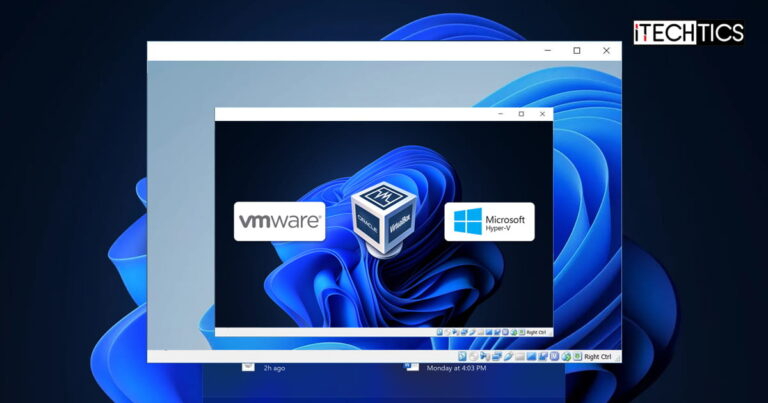
Note:Enabling nested virtualization for VMWare Workstation and Oracle VirtualBox on operating systems other than Windows is different.
In other words, running a VM inside of another VM.
When enabling a nested virtualization environment, you are nesting a hypervisor.

A hypervisor is software that runs and manages virtual machines on top of the host computer.
The hypervisor running the main virtual machine is considered a Level 0 (L0) hypervisor.
The hypervisor running inside the VM is referred to as a Level 1 (L1) hypervisor.

Further nested virtualization would result in a Level 2 (L2) hypervisor, and so on.
At this point, most users come to think How many nested virtualization environments can you run simultaneously?
There is no definitive answer to this at the moment.

However, it all depends on your systems resources.
Prerequisites for Nested Virtualization
To enable nested virtualization, the hypervisor needs to support it.
Hyper-V first supported nested virtualization inWindows 10/Windows Server 2016.
Before that, this technology was not available in the Hyper-V hypervisor.
If you are using Oracle VirtualBox, versions 6.1 and above support nested virtualization.
you could verify this information by checking on the OEM website or checkinghardware virtualization compatibilityfrom Command Prompt.
Therefore, this needs to be done using the Command Line Interface (CLI).
check that that the VM is shut down/powered off and note down the VMs exact name.
On the host computer,open Windows PowerShell with elevated privileges.
Nested virtualization on that particular VM will now be enabled.
You may now run another guest OS on top of that VM.
We also found the option to enable it from the VirtualBox VMs setting page.
Here is how:
UsingFile Explorer, navigate to the path where VirtualBox is installed.
By default, it has the following path:
Copy this path and then open anelevated Command Prompt.
Use the cd cmdlet to change your directory to theVirtualBoxfolder.
Use the copied path from File Explorer.
Nested VT-x will now be enabled on the selected VM.
After running the cmdlet in the steps above, nested virtualization is enabled by default.
If you wish to disable it, simply uncheck the box next to Enable Nest VT-x/AMD-V on theProcessorsettings page.
This way, you wont be putting the parent host computer in harms way.
Nested virtualization is another great way to use limited resources while achieving more.
0
Get weekly insights, tips and exclusive content delivered straight to your inbox.
Talk to us straight and get your questions answered right away
source: www.itechtics.com
