MicrosoftWindowsWindows 11
Windows Security is the only preinstalled defense software that comes withWindows 11andWindows 10.
It is because of this software that the average Windows user does not need another paid security software.
Therefore, such systems must have the Windows Security app working seamlessly.
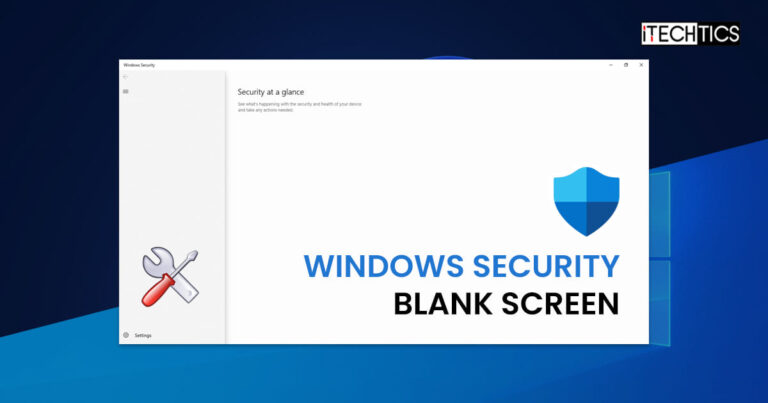
Precisely, it is blank and no information is being displayed.
In short, there is no known pattern.
If you are reading this post, you are likely facing the same issue.

The number one reason that we found common amongst end users was usingthird-party antivirus software.
When using another antivirus software, the Windows Security app automatically stops functioning and performing scans.
This makes some pages inside the app appear blank.

Let us now continue to the possible solutions to confirm that your box is safe again.
Fix Blank Windows Security Page
We have listed the solutions to fix the Windows Security app chronologically.
Perform these solutions in the order given.

Restart Computer
The first thing you ought to do is to start the computer.
The easier method would be to simply restart the dependent services for Windows Security.
Therefore, we suggest that you restart the computer in an attempt to fix the issue.
If rebooting the PC didnt work for you, then we suggest that you proceed with the following solutions.
Repair/Reset Windows Security
Just like all other UWP apps, Windows Security is also an app.
Like all others, it can be repaired or reset, if needed.
We suggest that you perform the following steps in an attempt to repair the app.
If repairing it doesnt work, try resetting it.
Navigate to the following:
Search for Windows Security.
Now check to see if you’re able to view the Windows Security pages which appeared blank earlier.
In this case, you must uninstall this antivirus for Windows Security to work normally again.
Install Pending Windows Updates
Windows updates also include system files that are overwritten on the existing files.
Therefore, it may also replace any corrupted system files with new, fresh ones.
The app will now begin searching the web for updates.
If any update(s) is available, download and install it.
Once the update(s) is installed, restart the computer.
Register System Files
Unregistered system files can cause the respective services to not be able to run.
you’re free to register Dynamic Link Libraries (DLLs) using the regsvr32 command line tool.
Therefore, we insist that you create asystem restore pointbefore proceeding forward with the process.
Heres how to do it:
Open anelevated PowerShellinstance.
execute the following cmdlet:
Now check the Windows Security program to see if the issue has been resolved.
Redeploy all Applications
The following steps redeploy all Windows applications from scratch.
That wont be necessary.
If this hasnt worked either, then the only possible workaround would be to reset your box.
Reset Windows
Resetting the computer brings all configurations back to their factory default configs and values.
If the solutions discussed above did not work for you, then you must now reset your PC.
Note that this will retain all your personal data.
Click Reset PC in front ofReset this PC.Reset computer
The reset wizard will now open.
Click Keep my files.Keep files while resetting Windows
Select Local reinstall.
Click Next.Proceed
Click Reset.Click Reset
The complete reset process can take a while, depending on your computers specs.
just allow it ample time to complete anddo not power off or reboot your PCduring the process.
Now, check the Windows Security program and see if the blank pages have now been restored.
If the issue remains, then the only solution now is to perform aclean Windows installation.
We hope that at least one of the given solutions worked for you.
0
Get weekly insights, tips and exclusive content delivered straight to your inbox.
Talk to us straight and get your questions answered right away
source: www.itechtics.com
