Software & Guides
Every home today has an internet connection, and probably wireless connectivity too.
Managing and maintaining those internet gadgets can become tricky, especially if they encounter a problem.
They may be red, green, or orange.
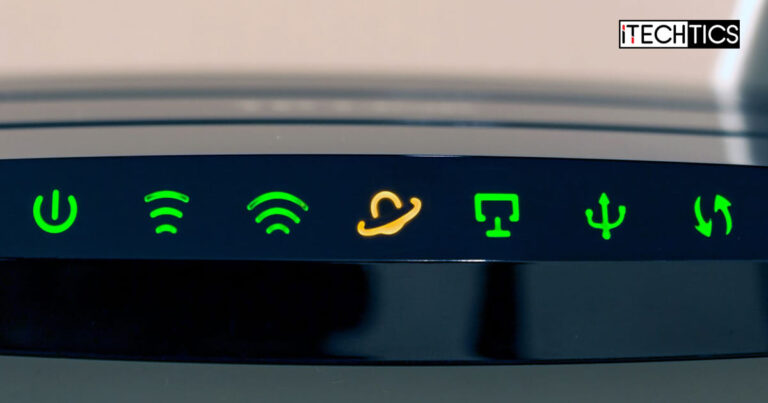
Moreover, they can be solid colors or blinking at different rates.
If so, you are correct to assume that both are interconnected incidents.
Table of Contents
What Does Orange Light on Router Mean?
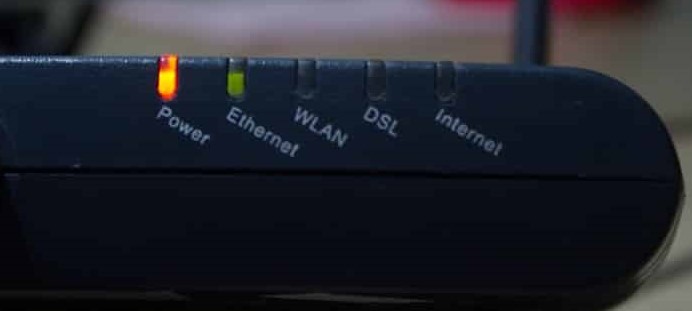
The orange power light on a router
A green light usually means that everything is in order and functioning as it should.
An orange light on a router or a modem can mean several different things.
It is entirely dependent on where the orange light is appearing.
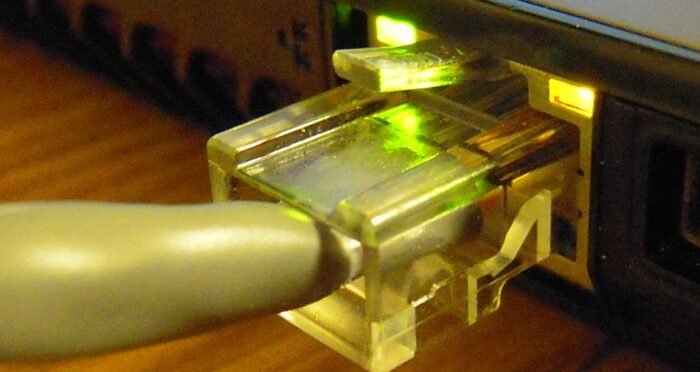
Ethernet switch activity LED
Moreover, as mentioned earlier, it also depends onwherethe orange light is appearing.
However, an orange light under the Power state means something different.
In this article, we are going to be discussing the orange light that appears on the WAN LED.
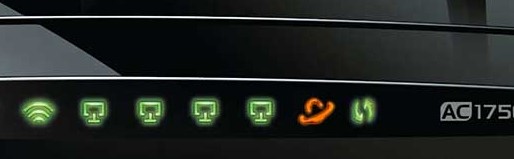
Orange light on WAN/Internet indicator on the router
Restart/Power Cycle the Router
The first thing you ought to do is restart the router/modem.
A simple restart usually fixes most errors pertaining to minor malfunctions of the hardware and the services.
However, since the issue may be something serious, lets perform a complete power cycle.

The reset button on a router
Implement the following steps to perform a power cycle:
Turn off the modem/router.
Unplug all cables, including the ethernet and power cords.
Wait for a few minutes before plugging everything back in.

Log into to router’s admin portal
Turn the equipment on again.
Wait a few minutes for the router to fully function again.
Now check to see if the orange light has gone away after a few minutes.

WAN symbol on a router
If it is still there, continue to perform the remaining solutions.
Either way, it is the ISPs responsibility to fix such issues.
Wait for the service to come back on and your orange light should go away.

Updating a routers firmware can be tricky and potentially permanently damage the gadget if not done correctly.
Therefore, it is advised that you proceed with the following steps with caution.
Begin by going to the manufacturers website and downloading the latest firmware for your gear.
Once it has been downloaded, use anyweb browserto log into your routers admin portal.
Provide the credentials to log into the portal and sign in.
Proceed with installing the firmware and wait for it to complete.

Note:Ensure that there are no power disruptions or otherwise during the firmware update.
A typical routers life is around 5 years.
0
Get weekly insights, tips and exclusive content delivered straight to your inbox.

Talk to us straight and get your questions answered right away


source: www.itechtics.com
