Written by Marteen Roose
1.
Before installingAdobe Photoshop Lightroom, you should disable your antivirus.
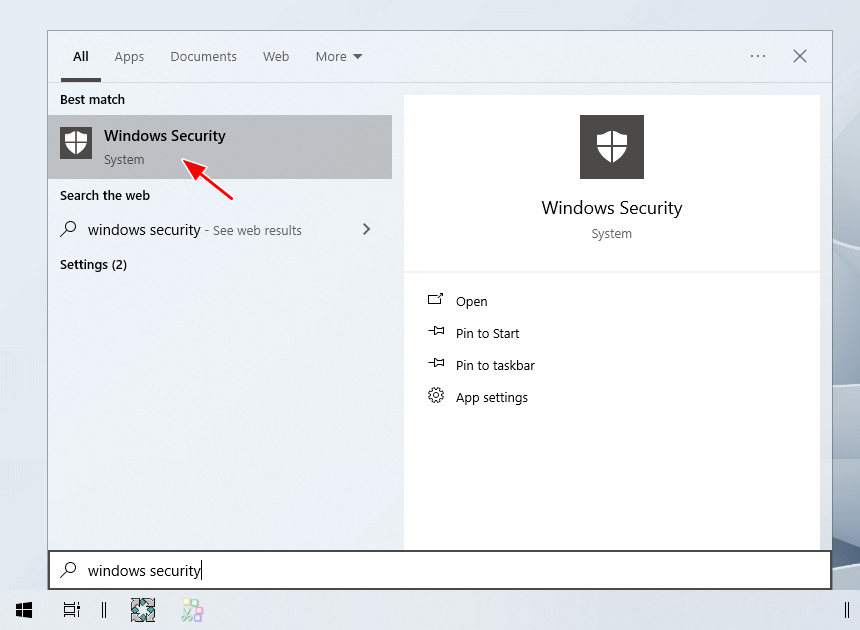
To get started, click theStartmenu and openWindows Security.
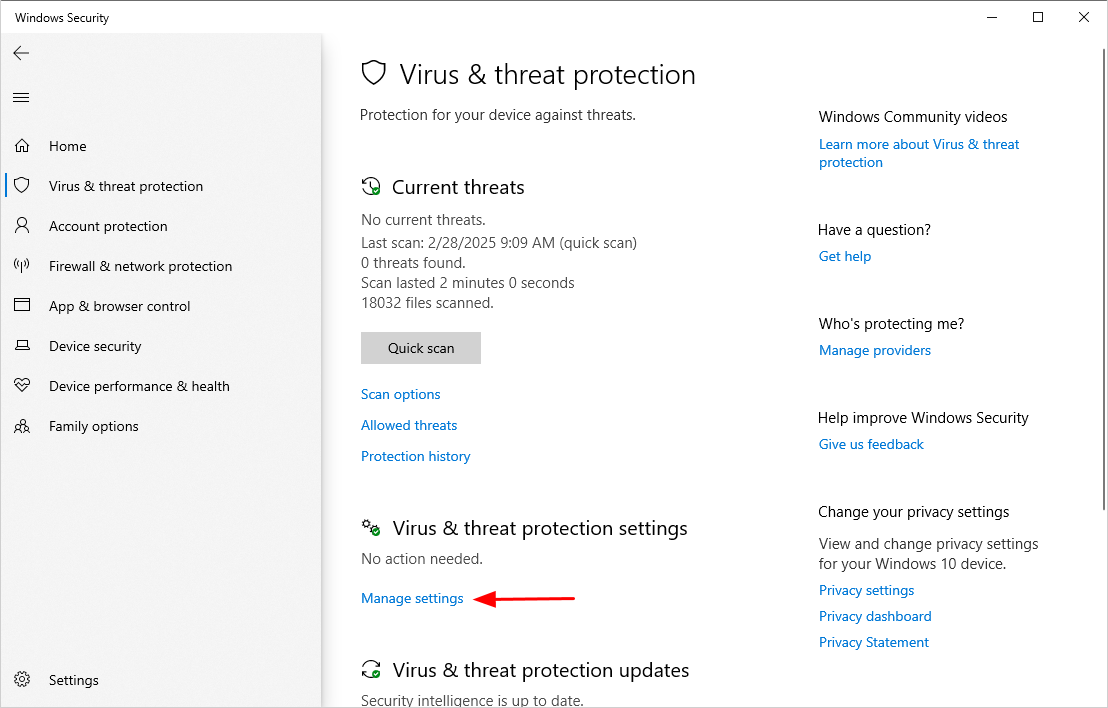
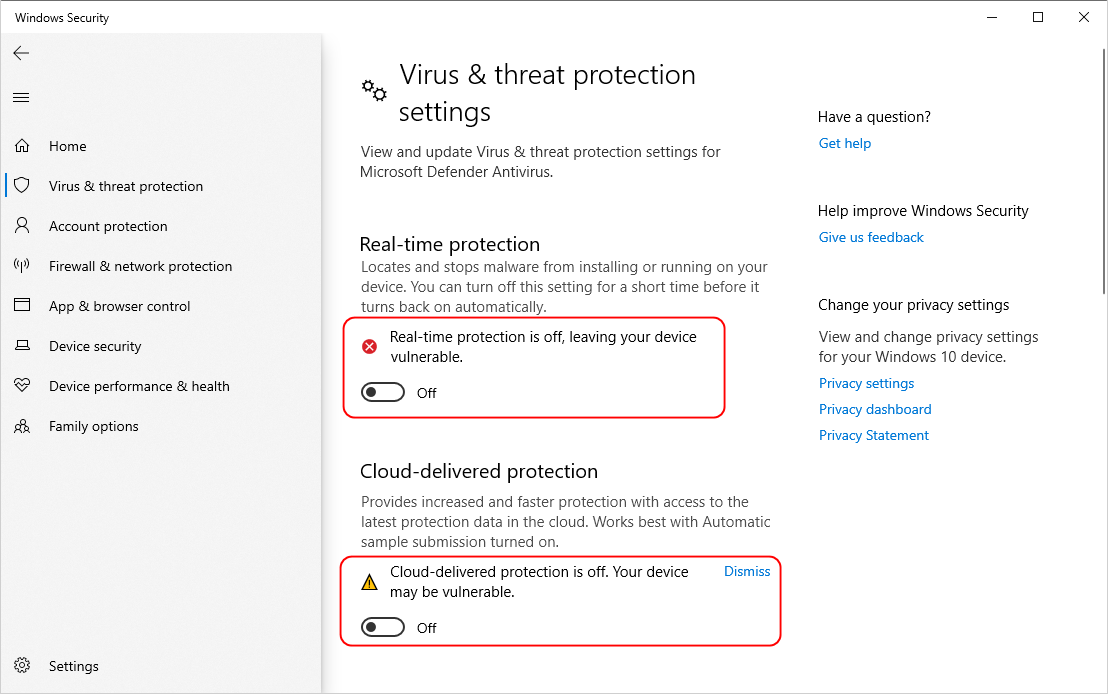
ClickReal-time protectionto disable it.
Do the same to the other security features in the window.
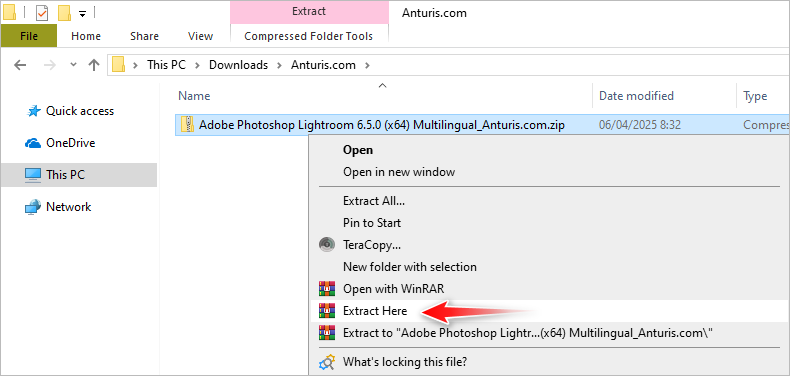
Extract the archive file.
If it asks you for a password, enter123.
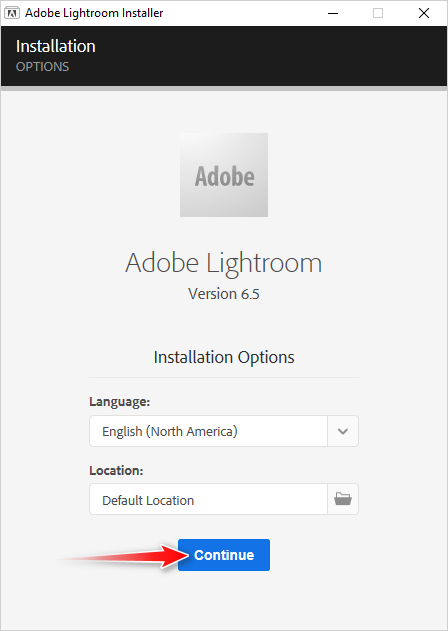
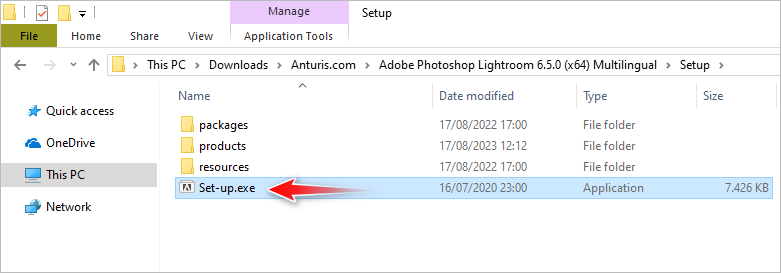
pop fire up extracted folder, and then find and double-click theSet-upfile.
roll out the program to the default location by clicking theContinuebutton.
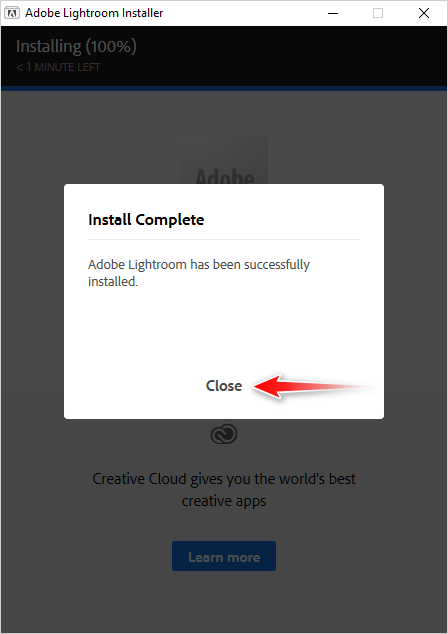
Once it has been successfully installed, wrap up the window.
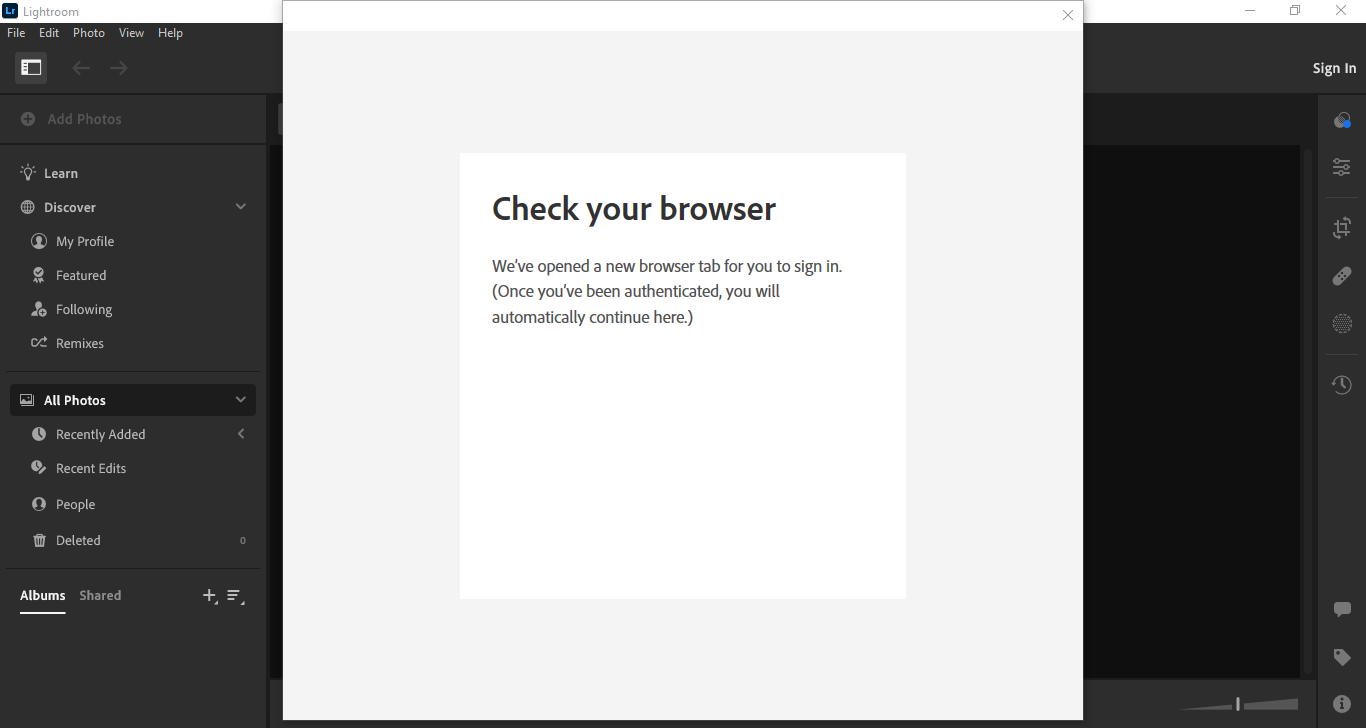
Launch Adobe Photoshop Lightroom.
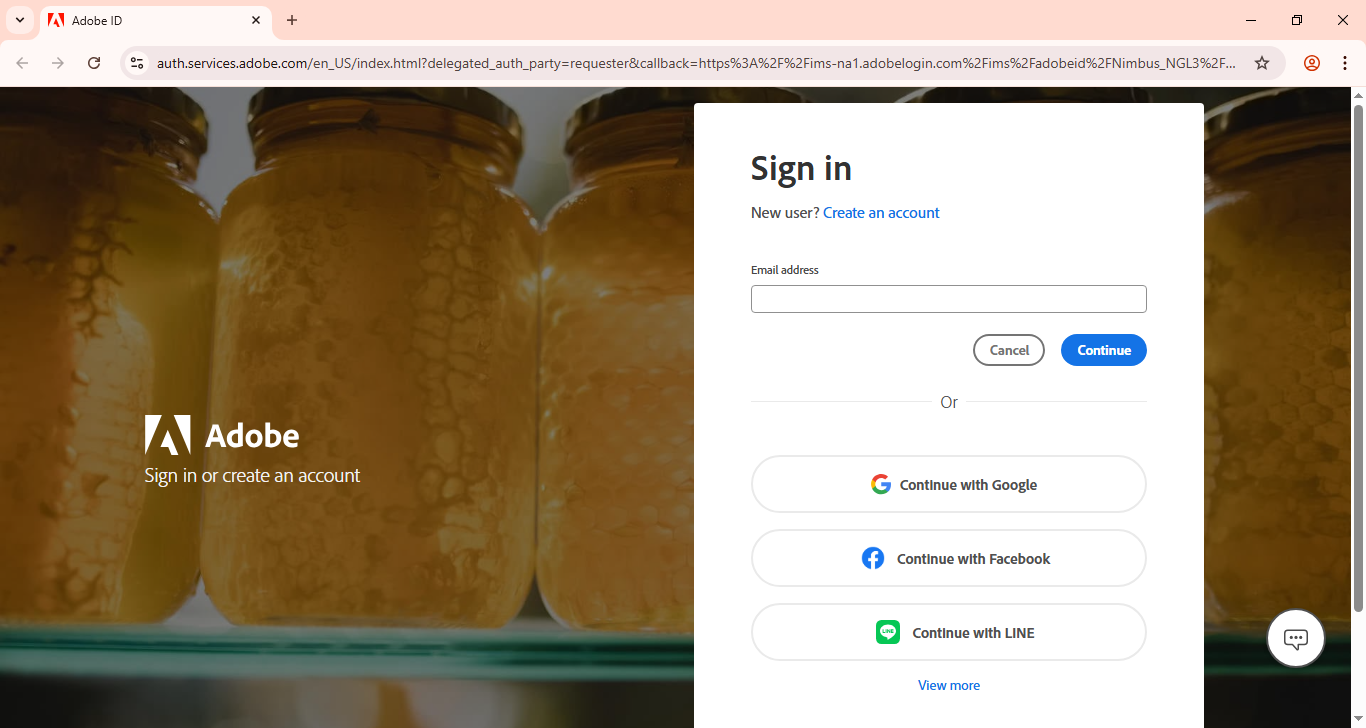
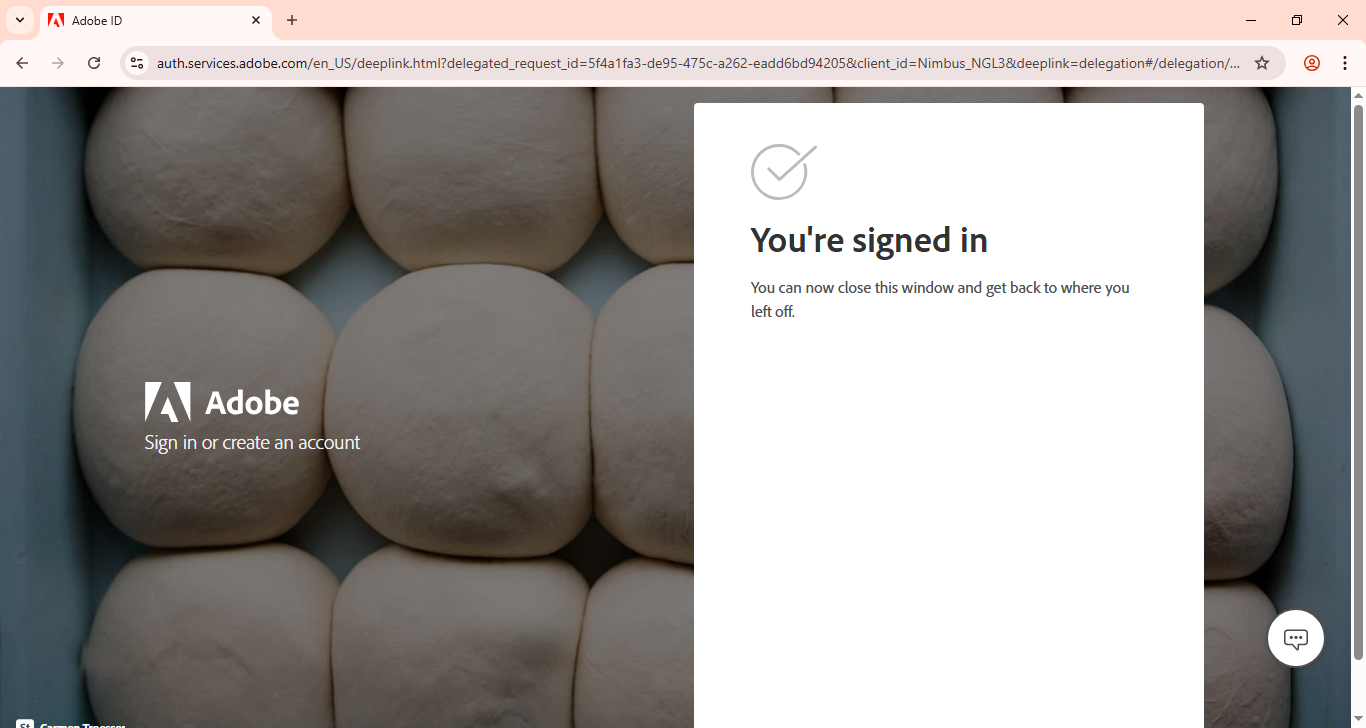
Once you finish setting up your new account, go back to Lightroom.
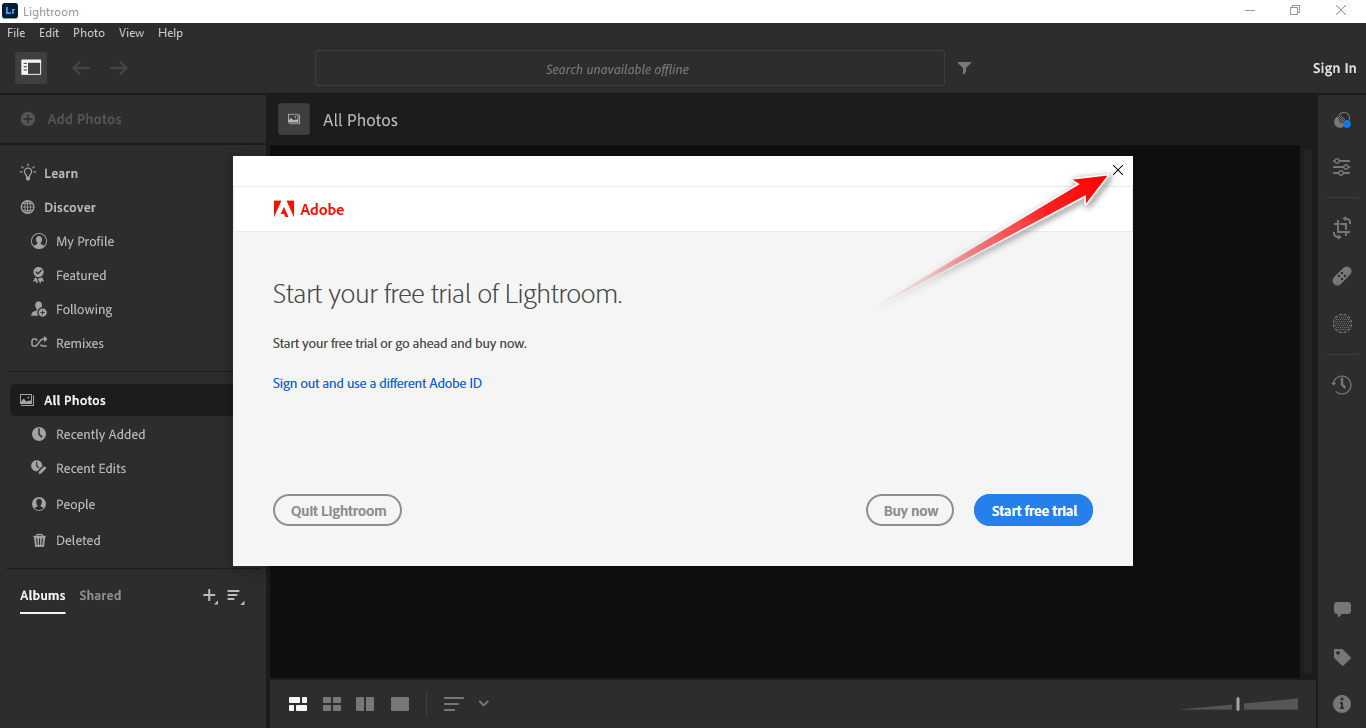
If it asks you to start a free trial, ignore it by clicking the close button.
The main window will also close automatically as soon as you click that button.
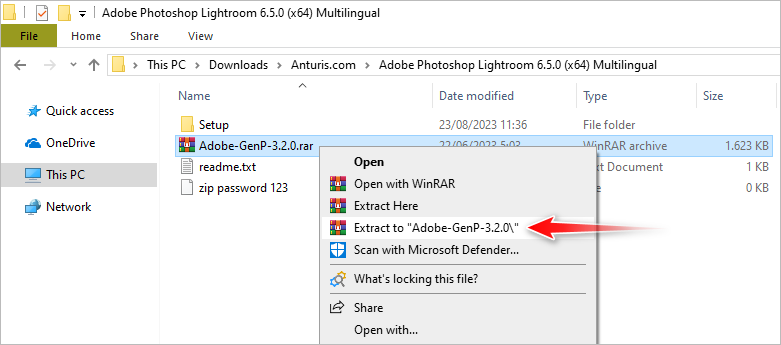
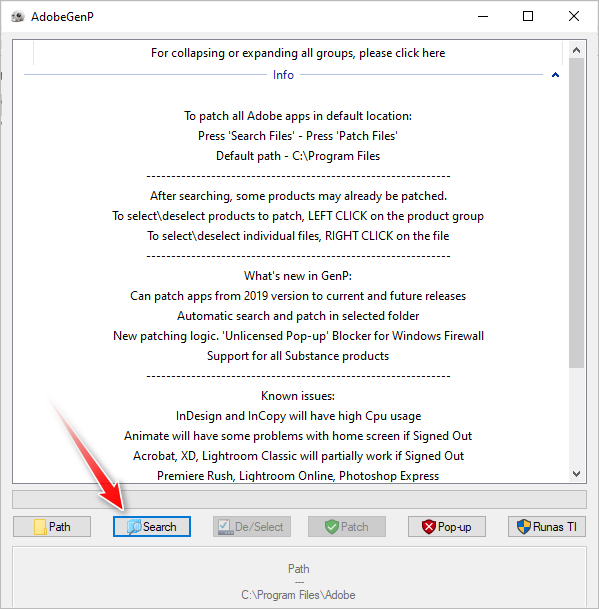
Return to the extracted folder, find and extract the archive file shown in the image below.
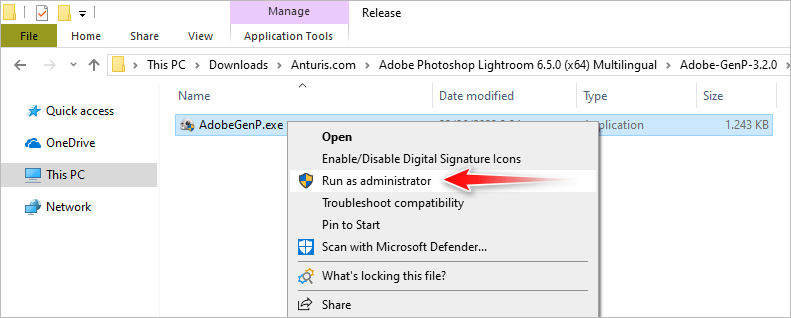
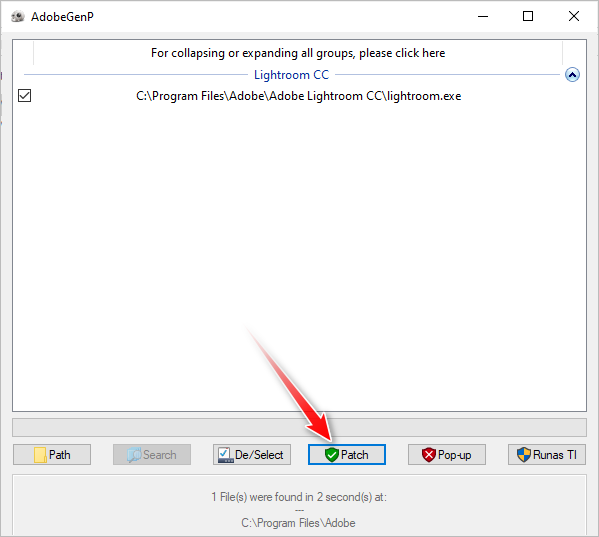
- initiate the executable file as administrator.
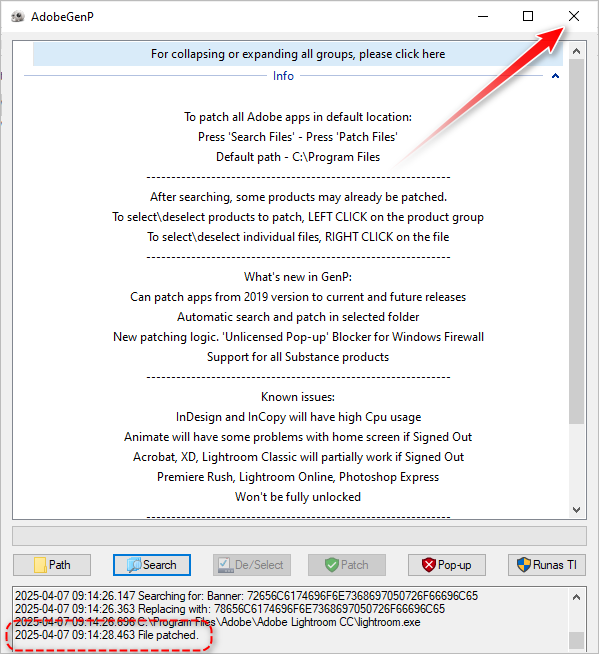
Once the patching is done, end the window.
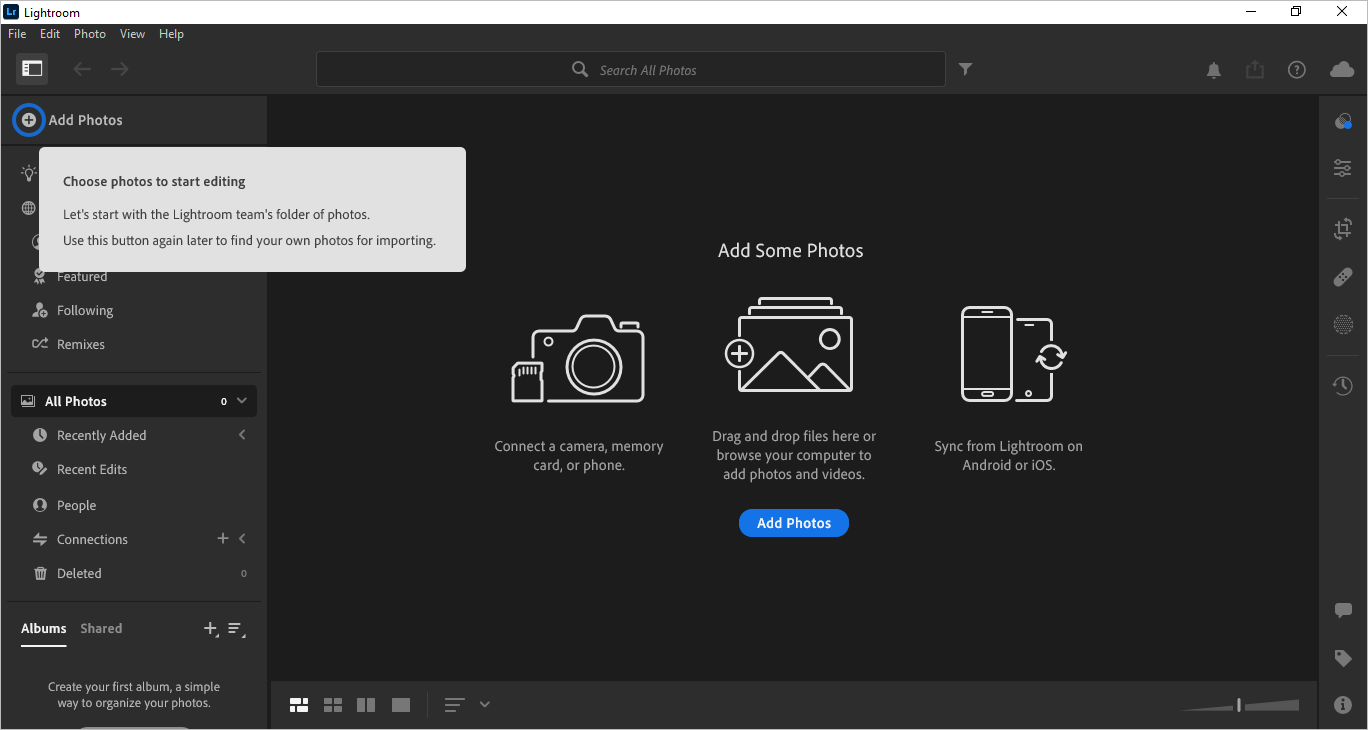
Adobe Photoshop Lightroom is now activated.