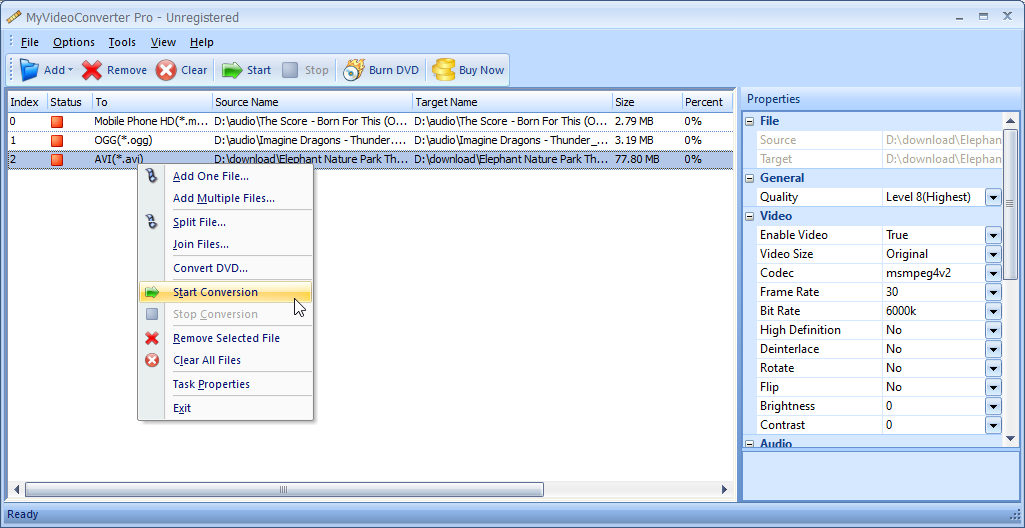
The interface is plain and simple but it covers the most essential features of video and audio conversion.
It can handle batch jobs.
And if youre going to convert many files, the toolbar can be hidden if necessary.

After all, most of the commands in the toolbar can be found in the context menu.
A video, or an audio file, can be split into many parts too.
A video can be joined with other videos, and an audio can be combined with other audio files.
A suffix is automatically added to the output to prevent accidental overwrite.
Drag and drop is supported too.
When you drag and drop a file into its main window, a dialog window will open.

By default, the conversion is set to level 8.
This is the highest level that produce the best quality output.
There are eight levels in total.
These levels are actually presets and each preset has different configurations.
Therefore, when you switch from one preset to another, the parameters will change on their own accordingly.
The properties is displayed on the right panel and almost every parameter in it can be customized.
When you convert files, there is a risk that the original ones will be overwritten by the output.
To prevent this, MyVideoConverter adds _mout to the ending of the output filename.
This suffix is optional.
It can be disabled but cannot be changed.
The presets can save time, especially since it is possible to create your own.
The automatic file naming is also helpful since you dont have to worry about losing your original files.
Note that the trial version always open a notification windows when MyVideoConverter is launched.
The program also adds a watermark on output.
