Playing games is one of the most popular choices to have fun.
People who love it very much can get easily absorbed in the games.
Afterward, it displays the games in its main interface.
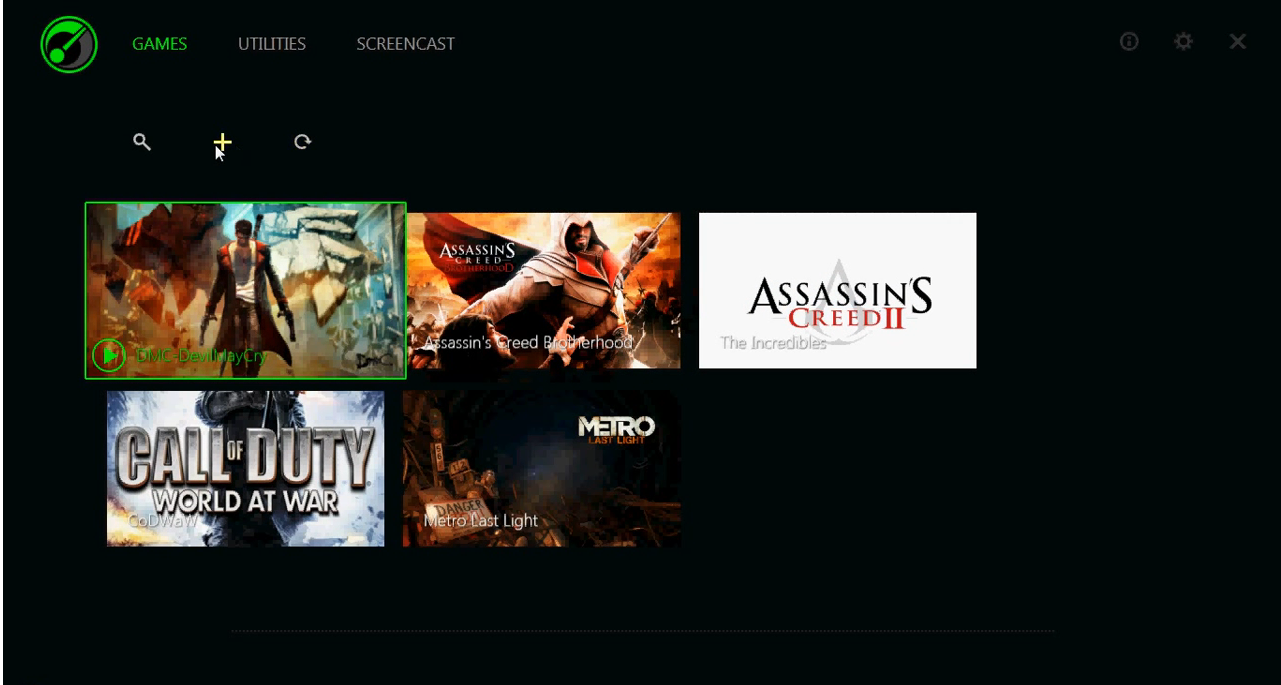
This method is the easiest way to add games, but it has one drawback.
It can only display games that the automatic scan recognizes.
If you have a game that Razer Game Booster fails to recognize, you have to add it manually.

Although it is not as convenient as the automatic scan, it is still very easy to do.
It just needs a little bit more time to finish.
Razer Game Booster has a search function.
It is used to locate the game that you want to customize or play.
The last one is any image that you choose to be shown for the game in the game list.
There is no need to worry about the safety.
It only suspend those that are safe to suspend.
Additionally, Razer Game Booster can clean your computers RAM before launching a game.
The cleaning is intended to remove unused data from RAM and allocate the free space for your game.
The clipboard is the other area that is targeted for cleaning to remove unused clipboard data.
In this mode, you will get better performance, but your setup may use more energy to run.
It closes Explorer.exe to free up more memory for your game.
It disables Automatic Updates too so that your system wont be able to look for updates online.
Razer Game Booster also brings in a couple of optimization tools to further improve your system performance.
