Its simplicity is the other reason that boosts its popularity in no time since the day it was introduced.
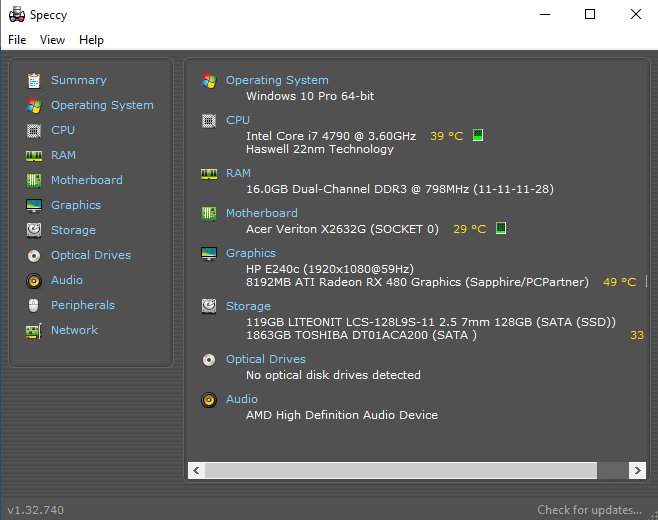
Speccy comes with a relatively attractive interface.
Features and Highlights
Once you launch Speccy, it scans your entire system to collect information.
It takes time, but not for long.
In a few seconds, Speccy will let you know all of the data it has gathered.
The data is neatly organized.

On the left side, each component is listed along with its own icon.
On the right side, it is where the information of each component is displayed.
The first information that Speccy presents to you after the completed scan is a summary.
To see the detailed information of a component, hit its name on the sidebar.
Speccy has four options to save the information.
Save it as a snapshot, XML, text, or print it out.
All of the saving options are listed in the File menu.
There is an option to minimize it to tray, too.
While it sits there, you could make use of it to display the current temperature of your CPU.
It only need around 9 MB to perform the task if you use its 64-bit version.
A system information tool like Speccy is a big help in such a situation.
Speccy is free and simple.
