MicrosoftWindowsWindows 11
Key Points
Most operating systems have environment variables, including Windows, MacOS, and Linux.
These can be used to access certain directories quickly, rather than enter the complete paths.
Environment variables can be edited and manipulated, or you’re able to even add new ones.
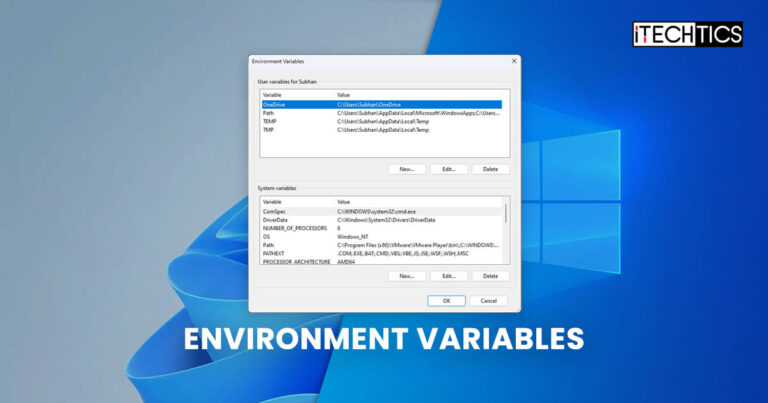
Just like in programming, variables contain a value that can be changed or called when needed.
Environment variables are the same but can be used across the entire scope.
Environment variables are normally used in scripts or programs/apps.

Then there are user environment variables.
The end-user does not see or have anything to do with the process variables.
you’re free to use these variables to access a path quickly.

For example, typing in %HOMEPATH% in the Run Command box will initiate the users home directory.
These scopes define the limitations of the variables and where they can be used.
Below youll find a more detailed explanation of the different types of environment variable scopes.

System/Machine
The environment variables defined inside this scope can be used by anyone on the system.
These types of variables are associated with the running instance of Windows.
This is associated with the current user.
User variables overwritemachine-scoped variables with the same name.
)%CMDCMDLINE%Outputs command line used to launch current Command Prompt session.
)%CMDEXTVERSION%Outputs the number of current command processor extensions.
)%COMPUTERNAME%Outputs the system name.%DATE%Outputs current date.
)%TIME%Outputs time.
)%ERRORLEVEL%Outputs the number of defining exit status of the previous command.
Now that you know where they are stored, you may have a look at them.
However, it isstrongly recommended that you do not add or change environment variables using the Windows Registry.
This is because any running processes will not see variable changes in the registry.
If you want to add or make changes to the environment variables, keep reading this post.
Pick the method you like best from below.
From the pop-upSystem Propertieswindow, switch to theAdvancedtab, and then clickEnvironment Variables.
Another method to view the value of an environment variable is through the Command Prompt.
Once done, clickOK.Enter details for variable
Back in theEnvironment Variablewindow, clickOKagain to save the changes.
Once you create the variable, it’s possible for you to access it immediately.
Theres no need to restart the computer for the changes to take effect.
Note:These methods create a user environment variable and not a system variable.
Here are a few that can be used with great convenience.
PathManis a very simple portable program, which will only edit the PATH environment variable.
Eveditorcomes with an elegant and very user-friendly graphical user interface that resembles the look and feel of Windows Explorer.
you might choose from a user variable or system variable from the pane on the left.
The selection will be displayed on the right-hand pane.
The details of the selected environment variable will be displayed in the bottom pane.
you might edit the selected variable, and upon clicking the Set button, the variable will be saved.
yo note that you will need to run Eveditor with administrative privileges to save the environment variables successfully.
One concern while deleting a variable is whether it is safe.
The answer is both yes and no.
Other than that, it has no impact on the systems performance.
That said, we still think that you should be extremely careful when deleting a variable.
Access theEnvironment Variableswindow using one of the given methods above.
The variable will now be removed from your PC.
Alternatively, you could use the Command Prompt to unset an environment variable.
Simply use thesetcommand discussed above to empty the string.
Here is an example:
Leaving the command blank after = will set the string to empty.
The environment variable will exist but will be of no use.
Its name can be changed as well as its value.
That said, the PATH variable stores several paths to directories for executable files.
it’s possible for you to safely add more directory paths to this variable without causing an issue.
What is the PATH Environment Variable
Earlier in this post, we mentioned the PATH environment variable.
The PATH variable is perhaps the most-used variable out of the lot.
The PATH variable stores multiple entries (or values).
It is a data store location that you might access like a file system drive in Windows PowerShell.
Using this drive, we can manage different aspects of the environment variables.
Below youll find the guidelines to perform different variables-related tasks using the Env: drive.
To begin, you must first switch to the ENv: drive.
To do that, bang out in the following in the PowerShell window.
The answer is both yes and no.
What does the PATH environment variable do?
The PATH environment variable can store multiple path values for different executable files.
0
Get weekly insights, tips and exclusive content delivered straight to your inbox.
Talk to us straight and get your questions answered right away
source: www.itechtics.com
